Quick Answer
Enable Rank Math's Image SEO module, turn on Add missing ALT attributes, and use %filename% only if your filenames are descriptive. Rank Math fills alt text at runtime without changing the Media Library. It treats an empty alt="" as missing, so decorative images inside content will get generated text. Keep Images in Sitemaps enabled and check the rendered HTML.
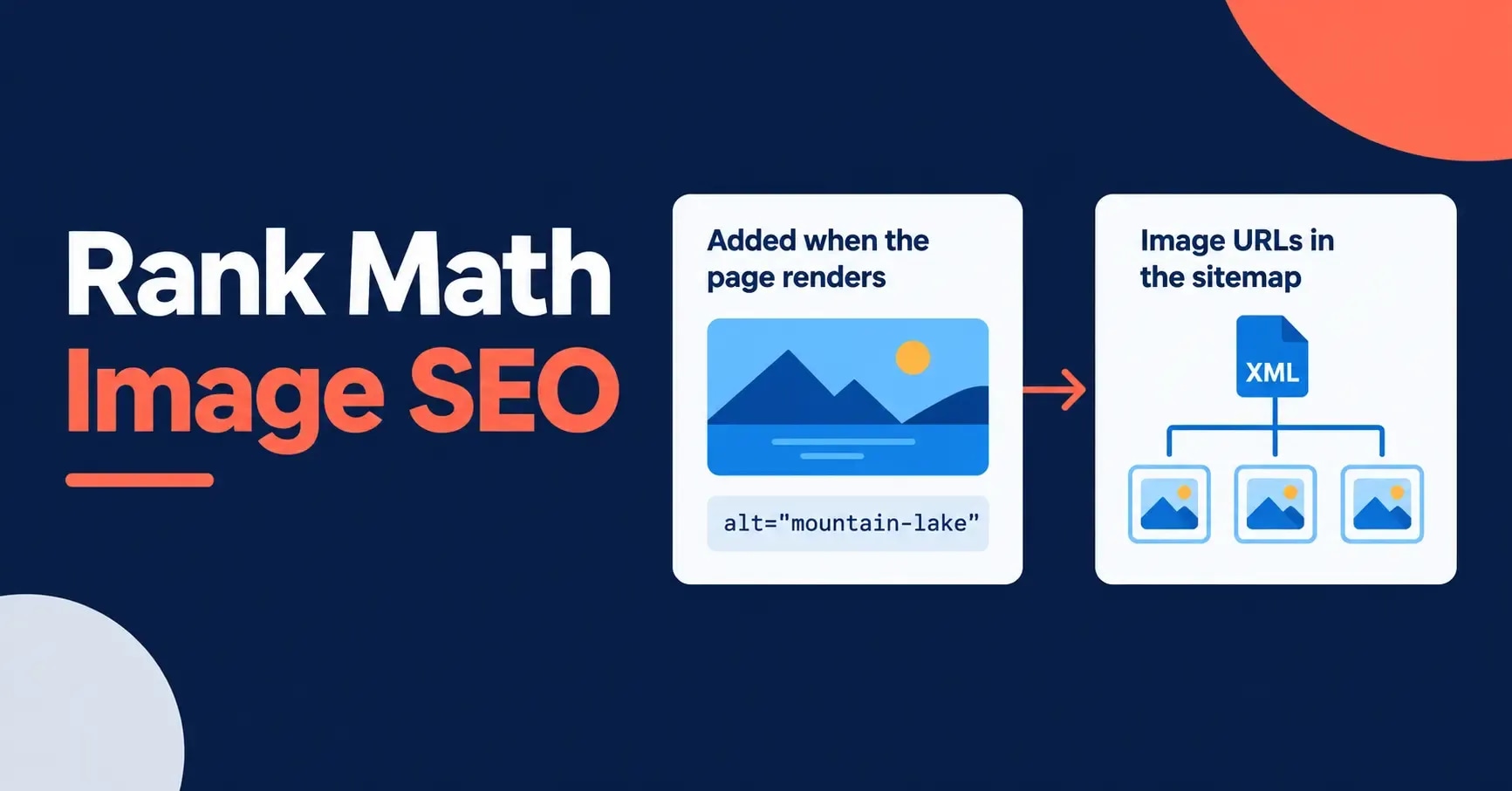
Table of ContentsOn this page
- Recommended Rank Math image SEO settings
- What the Image SEO module actually does
- The empty alt problem: decorative images get overwritten
- How to set up Rank Math image SEO
- How to choose an alt attribute format
- Free and PRO image settings
- Rank Math image sitemap settings
- What these settings do not cover
- How to check the settings on a live page
- Common Rank Math image SEO mistakes
- Rank Math image SEO checklist
- Frequently Asked Questions
- Sources and References
Key Takeaways
- Treat Rank Math's automatic alt text as a fallback for omissions, not a replacement for image-specific descriptions.
- An intentional empty alt="" counts as missing, so decorative images inside post content get generated alt text when the setting is on.
- Generated values are applied at runtime to content, featured images and WooCommerce product images; the Media Library is never updated.
- The free plugin fills ALT and TITLE attributes; captions, descriptions, casing, avatar alt text and replacements are PRO.
- Images in Sitemaps is on by default and helps discovery, but it does not guarantee indexing.
Rank Math image SEO can fill in missing image attributes and help search engines discover image URLs through your sitemap. On an older WordPress site where image metadata was handled inconsistently, that is genuinely useful. What it cannot do is look at an image and say what it shows.
So use the automation as a fallback. Write alt text yourself when an image carries meaning, and let Rank Math catch accidental omissions. There is one catch with decorative images that Rank Math's own documentation does not mention, covered in detail below, and it changes how you should configure the module.
Verification note. Checked on 10 and 11 October 2026 against Rank Math's documentation, its free versus PRO comparison, and the source code of the Image SEO module in version 1.0.280, the current release on WordPress.org [5]. Where the code and the documentation differ, this guide follows the code and says so.
Recommended Rank Math image SEO settings
Start from this baseline:
| Setting | Recommended starting point | Why |
|---|---|---|
| Image SEO module | Enabled | Makes the Images settings available |
| Add missing ALT attributes | Enabled, unless you rely on alt="" for decorative images in content | Covers accidental omissions, but also fills intentional empty alt |
| ALT attribute format | %filename%, if filenames are descriptive | More image-specific than repeating the post title |
| Add missing TITLE attributes | Optional | Hover text only; never a substitute for alt text |
| Images in Sitemaps | Enabled (the default) | Helps search engines discover image URLs |
| Include Featured Images | Enabled when featured images are relevant and indexable | Adds them to the sitemap even if the theme does not show them in content |
| PRO caption and description automation | Off until you have reviewed the output | Generated visible captions are often repetitive |
These are starting points. A photography portfolio and a WooCommerce store will not need the same formats or the same editorial checks.
What the Image SEO module actually does
The module adds missing alt and title attributes to images when a page is rendered. The settings sit under Rank Math SEO, then General Settings, then Images [1].
Three details from the source code explain almost every surprise people run into [5].
It never touches the Media Library. Values are added to the HTML on the way out, not saved to the image or to the post. Rank Math's documentation says the same: open the Media Library after enabling the setting and the alt field is still empty [1]. That makes a format change apply instantly across many pages, but it also means the description exists only where Rank Math's filter runs.

Its reach is wider than the documentation says. The documentation describes images in post or page content and excludes theme images in headers, sidebars and footers [1]. The code also filters featured images output through WordPress's thumbnail function and the WooCommerce single-product gallery, and it runs on REST API requests as well as normal page loads. Theme images placed directly in templates are still outside its reach.
An empty alt attribute counts as missing. This is the important one, covered next.
The empty alt problem: decorative images get overwritten
Rank Math fills an attribute when it is "empty", and the check it uses treats alt="" exactly like a missing attribute [5]. So with Add missing ALT attributes enabled, an image you deliberately marked as decorative will be given generated text such as its filename.
That matters for accessibility. W3C guidance is that decorative images should carry an empty alt attribute so screen readers skip them [4]. A separator, a background flourish or a redundant stock photo with alt text announcing "abstract-blue-shapes" adds noise for screen reader users and nothing for search.

Neither the setting nor the module offers a way to exempt individual images. You have three honest options:
| Your situation | What to do |
|---|---|
| Few or no decorative images inside post content | Leave the setting on. The fallback catches more real omissions than it harms. |
| You use alt="" deliberately on decorative images in content | Turn the setting off and find genuine omissions with a crawler instead. |
| You need both | Keep the setting on and move decorative images out of post content, for example into CSS backgrounds or theme templates, where Rank Math does not reach. |
Check the result on a published page either way. The verification steps below include a decorative image for exactly this reason.
How to set up Rank Math image SEO
1. Turn on the module
In WordPress, open Rank Math SEO, then Dashboard, and switch on Image SEO. Then go to Rank Math SEO, then General Settings, then Images. If the module or its settings are missing, check that Rank Math is in Advanced Mode and up to date. The Rank Math setup guide covers modes and modules.

2. Decide on Add missing ALT attributes
Switch on Add missing ALT attributes if the empty alt behaviour above does not affect your site. Rank Math then supplies alt text only where it is missing or empty, and leaves any written alt text untouched.
The Alt attribute format field controls the generated value. The default is %filename% [1], and Rank Math also offers variables from the post, taxonomy, author and site, which you can mix with static text. Choose the variable that will produce the most accurate description, not the one that contains a target keyword.

3. Decide whether you want TITLE attributes
Add missing TITLE attributes works the same way and produces hover text in most browsers. It is supplementary. It does not replace alt text, and repeating a keyword in both fields does not make the image more relevant. If a tooltip would add nothing for the visitor, leave it off.
4. Save and clear caches
Save the settings, then purge the page cache, any CDN cache and any static page layer. Otherwise the public page will keep serving the old HTML.
How to choose an alt attribute format
No format writes good alt text for every image. The right choice depends on how disciplined your filenames and editorial process already are.
Use %filename% only with descriptive filenames
%filename% works as a fallback when files are named properly before upload:
rank-math-image-seo-module.webpcan become a readable description.IMG_4821.jpgcannot.seo-seo-plugin-rank-math-best-settings.pngis keyword stuffing in filename form.
Google says filenames give light clues about an image, while alt text is the more important descriptive attribute. It recommends short descriptive filenames and useful, contextual alt text without keyword stuffing [2]. Rename files before uploading; changing a live media URL later can break references.
Do not use %title% for every image
The post title describes the page, not the image. On an article titled "Rank Math Image SEO Settings", it would give the same alt text to a settings screenshot, a sitemap screenshot and an example table. A screen reader user would not know what any of them shows.
If old filenames are useless, %title% can serve as a temporary safety net. Treat it as a bridge to cleanup, then rewrite the important images by hand.
Write important alt text manually
Manual alt text should say what the image conveys in its context:
| Image | Weak alt text | Better alt text |
|---|---|---|
| Screenshot of the module card | Rank Math SEO | Image SEO module enabled in the Rank Math dashboard |
| Screenshot of the format field | image alt text | Rank Math Alt attribute format set to filename |
| Line chart | traffic graph | Google Image search clicks rising from May to August |
| Product photo linking to a product | running shoes | Shop the blue Trail 4 running shoes |
The last example describes what the image does as well as what it shows, because it is a link. Google uses alt text alongside page content and its own image understanding, and asks for useful, information-rich text rather than keyword lists [2]. That is a higher bar than "include the focus keyword".
Free and PRO image settings
Rank Math's comparison page lists "Automated Image SEO" as free and "Advanced Automated Image SEO Options", "Automate Image Captions" and "Find & Replace Image alt/title/caption Text" as PRO [6]. The documentation gives the setting-by-setting split [1]:
| Setting | Free | PRO |
|---|---|---|
| Add missing ALT attributes and ALT format | Yes | Yes |
| Add missing TITLE attributes and TITLE format | Yes | Yes |
| Add missing captions and caption format | No | Yes |
| Add missing descriptions and description format | No | Yes |
| Change casing of titles, alt text, captions and descriptions | No | Yes |
| Add alt attributes to avatars | No | Yes |
| Find and replace in image alt, title and caption text | No | Yes |
For most blogs the free controls are enough. The hard part is not unlocking more fields; it is feeding the existing ones accurate source data. PRO tools save time on a well-governed library, but none of them can tell what an image depicts. Preview generated captions before turning them on sitewide, because a generic caption under every image distracts more than a missing one.
Compression, WebP conversion, lazy loading and EXIF removal are not part of this module. They belong to a broader image optimization workflow.
Rank Math image sitemap settings
Open Rank Math SEO, then Sitemap Settings, then General, and check two controls [3]:
- Images in Sitemaps includes images in your sitemap entries. It is on by default, and Rank Math recommends keeping it on.
- Include Featured Images adds featured images even when the theme does not display them in the post content.

Keep both on when the images are original, useful and meant to be found. If you use placeholder artwork, licensed images that should not be indexed, or a CDN that serves unreachable URLs, fix those problems rather than flipping the switches.
A Rank Math image sitemap helps discovery; it does not guarantee indexing or rankings. Google describes an image sitemap as a way to tell it about images it might not otherwise find [2]. After changing settings, open the sitemap index and check a few post entries. If images are served from a CDN, confirm Googlebot can fetch them; Google also recommends verifying the CDN hostname in Search Console so crawl errors get reported [2]. The XML sitemap strategy guide covers what else belongs in one.
What these settings do not cover
Rank Math image SEO handles attributes and sitemap inclusion. You still need to manage:
- Compression and dimensions. Upload images at a sensible size instead of letting CSS shrink an oversized file.
- Modern formats. Use WebP or AVIF where your delivery stack supports them.
- Responsive delivery. Use srcset and sizes, or a managed image service, so phones do not download desktop images.
- Largest Contentful Paint. Do not lazy-load an above-the-fold image likely to be the LCP element.
- Captions and surrounding copy. Place images near the text they support and caption only when it adds context.
- Meaning. A variable cannot tell a decorative background from an instructional screenshot.
Google's image guidance covers all of these, from responsive images and formats to page context and speed [2]. The plugin handles one part of that system. For stores, the ecommerce image optimization guide covers the product image decisions that sit outside Rank Math.
How to check the settings on a live page
A green toggle only proves the setting was saved. The rendered page shows whether it worked.

A five-minute spot check
- Pick a published post with one image that has manual alt text, one with no alt text, and one decorative image with alt="".
- Clear the page and CDN caches.
- Open the public page in a private window.
- Inspect each image in your browser's developer tools.
- Confirm Rank Math kept the manual text and filled the true omission.
- Look at the decorative image. With the setting on, expect generated text there too; decide whether that is acceptable for your site.
- Check a header or sidebar image separately. Theme template images are outside the module's reach.
- Open the relevant XML sitemap and confirm the expected image URLs appear.
For a larger site, crawl rendered pages with a crawler and separate these cases in the export: missing alt, empty alt, duplicated alt text, generic filenames, broken image URLs, and images far larger than their displayed size. An empty value is not automatically an error, so check each image's purpose before changing it.
Measure the result in Search Console
In Search Console's Performance report, switch the search type to Image and compare queries, pages, clicks, impressions and position over a before-and-after window that allows for seasonality. Do not credit every movement to the plugin. A rewrite, new images, an internal linking change or an algorithm update in the same period can all move the numbers. The defensible question is narrower: did Google find the intended images, and did image visibility change after a verified implementation?
Common Rank Math image SEO mistakes
- Treating generated alt text as finished work. Automation prevents a blank; it does not guarantee an accurate description. Edit images that explain a process, show data, identify a product or act as a link.
- Assuming decorative images stay silent. With Add missing ALT attributes on, an empty alt inside content gets filled. See the options above.
- Assuming the Media Library was updated. It was not. Exports, migrations, a switch to another SEO plugin, email templates or any page that does not run Rank Math's filter will not see the generated value. If a description matters beyond the web page, save it on the image.
- Repeating the post title on every image. This produces duplicate text and poor accessibility.
- Expecting Rank Math to optimise file size. Attribute automation does not compress, resize or fix loading behaviour.
- Believing sitemap inclusion guarantees indexing. Google still decides what to crawl, index and show. Check access, quality, canonicals and robots rules when expected images do not appear.
Rank Math image SEO checklist
- Enable the Image SEO module.
- Decide on Add missing ALT attributes, knowing it fills empty alt as well as missing alt.
- Use %filename% only when filenames describe the image.
- Write manual alt text for informative and linked images.
- Handle decorative images in content deliberately.
- Turn on TITLE attributes only if tooltips help visitors.
- Leave automated captions off until the output is useful.
- Keep Images in Sitemaps on for indexable images.
- Include relevant featured images in the sitemap.
- Check attributes in the rendered HTML after clearing caches.
- Check theme template images separately.
- Optimise file size, dimensions, format and loading separately.
- Review Image search performance in Search Console without assuming cause.
A sound Rank Math image SEO setup is deliberately modest. Turn on only the options whose output you have checked, and confirm each one on a real page. To compare how Rank Math, Yoast and All in One SEO handle the wider plugin features, see the three-way comparison.
Frequently Asked Questions
Does Rank Math automatically add alt text to images?
Yes. With the Image SEO module and Add missing ALT attributes enabled, Rank Math adds an alt attribute to images in post content, featured images and WooCommerce product images that lack one. It does this when the page renders and never saves the value to the Media Library.
Will Rank Math overwrite an empty alt attribute on decorative images?
Yes. In Rank Math version 1.0.280 the module fills any alt attribute that is empty, so an intentional alt="" on a decorative image inside post content is replaced with generated text. If your site relies on empty alt for decorative images, either keep the setting off and find omissions with a crawler, or move decorative images out of post content.
What is the best Rank Math alt attribute format?
On a site with consistently descriptive filenames, %filename% is a reasonable fallback, and it is Rank Math's default. There is no universal best format. Describe important images manually, and avoid using the post title for every image because it cannot explain what each one shows.
Does Rank Math change image alt text in the Media Library?
No. The automatic values are added to the rendered HTML only. The alt text and title fields in the Media Library stay exactly as they were.
Does Rank Math include images in the XML sitemap?
Yes. Images in Sitemaps is on by default under Sitemap Settings, and Include Featured Images adds featured images even when they do not appear in the content. A sitemap helps Google discover image URLs but does not guarantee they are indexed.
Does Rank Math compress images or convert them to WebP?
No. The Image SEO settings manage attributes, not file size or format. Use your image workflow, hosting stack or a dedicated optimisation tool for compression, dimensions, responsive delivery and formats such as WebP or AVIF.
Sources and References
Was this guide helpful?
Your answer helps Anobee improve future updates.

Written by
Bibek Thapa
AI-Powered Digital Growth Strategist
Bibek Thapa works across AI workflows, SEO, AI search optimization, content strategy, website growth, and productivity systems at Anobee.
- AI workflows
- Digital growth
- SEO
- GEO
- AEO
- Content strategy
- Website growth