SEO & AI Search
Google Search Console Setup: 5 Steps, Then Reading Your First Data
By Bibek Thapa · Updated · 13 min read
Quick Answer
Google Search Console setup takes about 15 minutes. Sign in with a Google account, add a Domain property and a URL-prefix property, verify ownership, submit your sitemap, then link GA4 if you use it. Add the property early: Google starts collecting data as soon as a property is added, but it takes a few days for numbers to appear.

Table of ContentsOn this page
- What Google Search Console is, and whether it is free
- Before step 1: add the property early
- The five steps of Google Search Console setup
- Step 1: Choose a property type
- Step 2: Verify ownership
- Step 3: Submit your sitemap, then inspect a few URLs
- Step 4: Link Search Console to GA4
- Step 5: Set permissions
- How to use Google Search Console in your first month
- Search Console impressions but no clicks: what it means
- What Google added to Search Console recently
- The bottom line
- Frequently Asked Questions
- Sources and References
Key Takeaways
- Search Console is free. A Google account is the only requirement to use it.
- Google starts collecting data when a property is added, even before verification.
- A Domain property can only be verified through a DNS record at your domain provider.
- Google's GA4 linking help does not limit the link to URL-prefix properties.
- An impression counts when your link is on the results page someone loaded, even unseen.
- Impressions with no clicks at position 60 is a ranking problem, not a title problem.
Google Search Console setup takes about 15 minutes. Sign in with a Google account, add a Domain property and a URL-prefix property, verify that you own the site, submit your sitemap, link GA4 if you use it, and decide who else gets access. Do it today rather than next week, because Google starts collecting data for a property the moment it is added.
The setup is the easy half. The harder question arrives a few weeks later, when the Performance report fills with impressions and almost no clicks. That happened to the page you are reading, so the second half of this guide uses its real numbers to show what the report means and what to check first.
What Google Search Console is, and whether it is free
Search Console is Google's own reporting tool for how your site appears in Google Search. Google calls it "a free service" for monitoring, maintaining and troubleshooting your site's presence in search results [1]. There is no paid tier.
It answers questions no other tool can answer with Google's own data: which queries showed your pages, how often, at what average position, and how many of those views became clicks. It also reports indexing problems, sitemap status and security issues.
Signing up is not what gets you into Google. Your pages can appear in search results without it [1]. What Search Console gives you is the view from Google's side.
Creating an account is not a separate step either. Any Google account works, and Google lists it as the only requirement [2]. Sign in at Search Console with the account you want to own the data, ideally a business account rather than a personal one you might lose access to.
If you are deciding between this and Google Analytics, they measure different moments. Search Console covers everything before the click, and GA4 covers what visitors do after it. Our GA4 vs Google Search Console comparison explains which tool answers which question.
Before step 1: add the property early
Most guides treat adding a property and verifying it as one moment. Google treats them separately, and the difference matters for your history.
According to Google, collection starts as soon as anyone adds the property to a Search Console account, even before it is verified [3] [4]. Numbers should begin to show within a few days [3]. Nothing is imported from before the property existed.
Anobee's own account shows this. Our URL-prefix property for https://anobee.com/ shows months of history. Our Domain property for anobee.com, checked on 11 November 2026, showed data only from 6 November 2026. Same site, same Google account, very different history, because the properties were added at different times.
The practical rule: add both property types on day one, even if verification has to wait for your developer or registrar.
The five steps of Google Search Console setup
| Step | What you do | Time | Can you change it later? |
|---|---|---|---|
| 1. Property type | Add a Domain property and a URL-prefix property | 2 minutes | Yes, but history starts from when each was added |
| 2. Verify | Prove ownership with DNS, an HTML tag or another method | 2 to 10 minutes, DNS can take days | Yes |
| 3. Sitemap and inspection | Submit the sitemap URL, inspect a few key pages | 5 minutes | Yes |
| 4. Link GA4 | Connect a GA4 web data stream to the property | 2 minutes | Only by deleting and recreating the link |
| 5. Permissions | Add other people at the right level | 2 minutes | Yes |
Step 1: Choose a property type
Search Console offers two kinds of website property, and they cover different sets of URLs [3].
| Item | Domain property | URL-prefix property |
|---|---|---|
| Example | example.com | https://www.example.com/ |
| Covers | Every subdomain and both http and https | Only URLs that start with that exact address, including the protocol |
| Verification | DNS record only | Several methods |
| Best for | The complete picture of your site | One version of the site, or one section such as /blog/ |
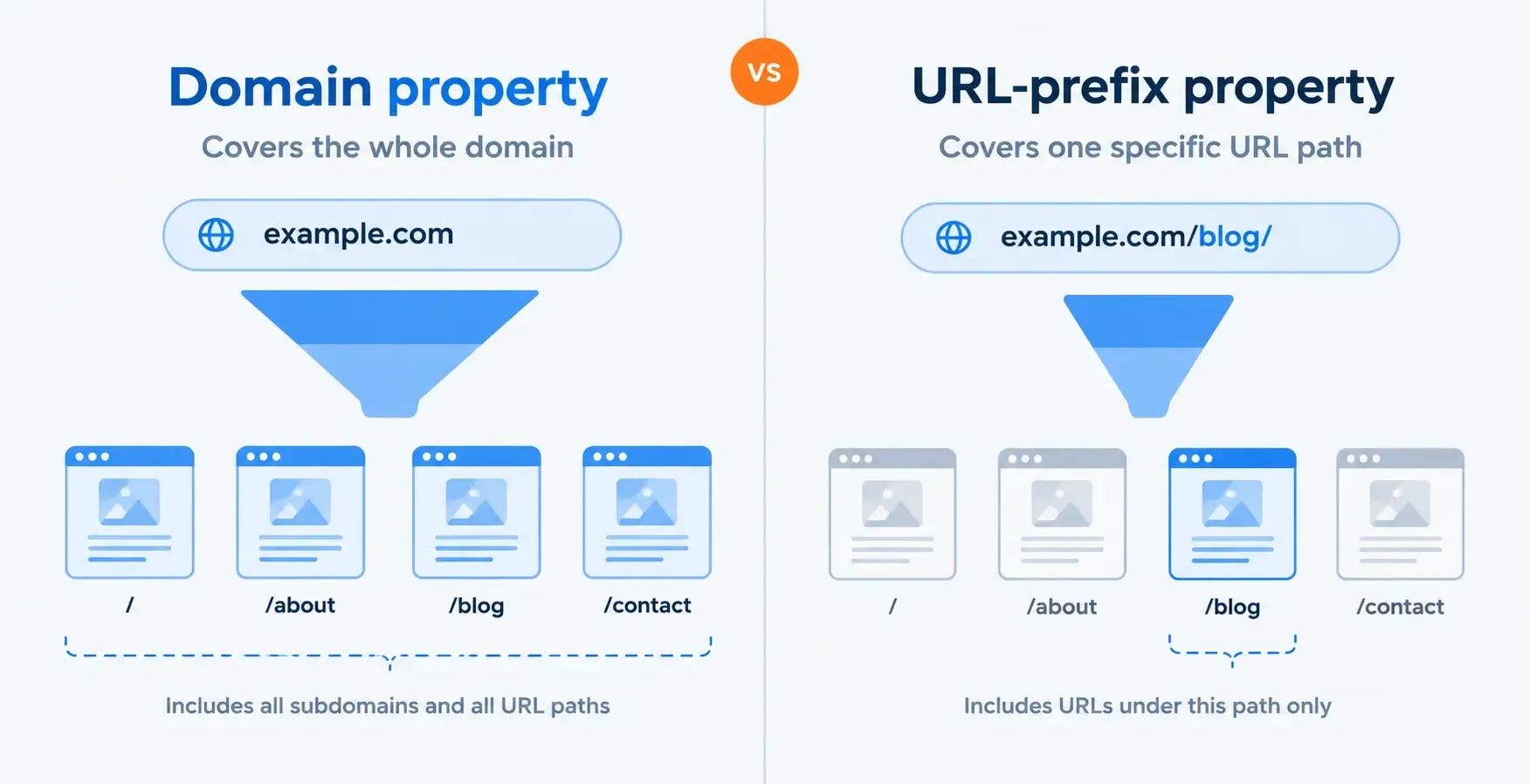
A Domain property gives you every version of your site in one report: www and non-www, http and https, and subdomains such as shop.example.com. Google notes that you should not include a www prefix when you define one [3].
A URL-prefix property is narrower. https://example.com/blog/ does not include https://example.com/shop/, and https://www.example.com/ does not include the version without www.
Set up both. The Domain property is the one to read for site-wide totals. The URL-prefix property for your main address is quicker to verify, accepts more verification methods, and lets you look at one version of the site in isolation.
Step 2: Verify ownership
Verification proves to Google that you control the site. Until it is done, you cannot see the data. The methods available depend on the property type you chose [4].
| Method | Works for | What it involves |
|---|---|---|
| Domain name provider (DNS) | Domain and URL-prefix properties | Add a TXT record at your registrar or DNS host |
| HTML file upload | URL-prefix only | Upload a file Google gives you to the site root |
| HTML tag | URL-prefix only | Paste a meta tag into the head of your home page |
| Google Analytics | URL-prefix only | Uses the GA tracking code already on the site |
| Google Tag Manager | URL-prefix only | Uses your existing Tag Manager container |
| Google Sites or Blogger | Those platforms | Use the recommended method for each platform |
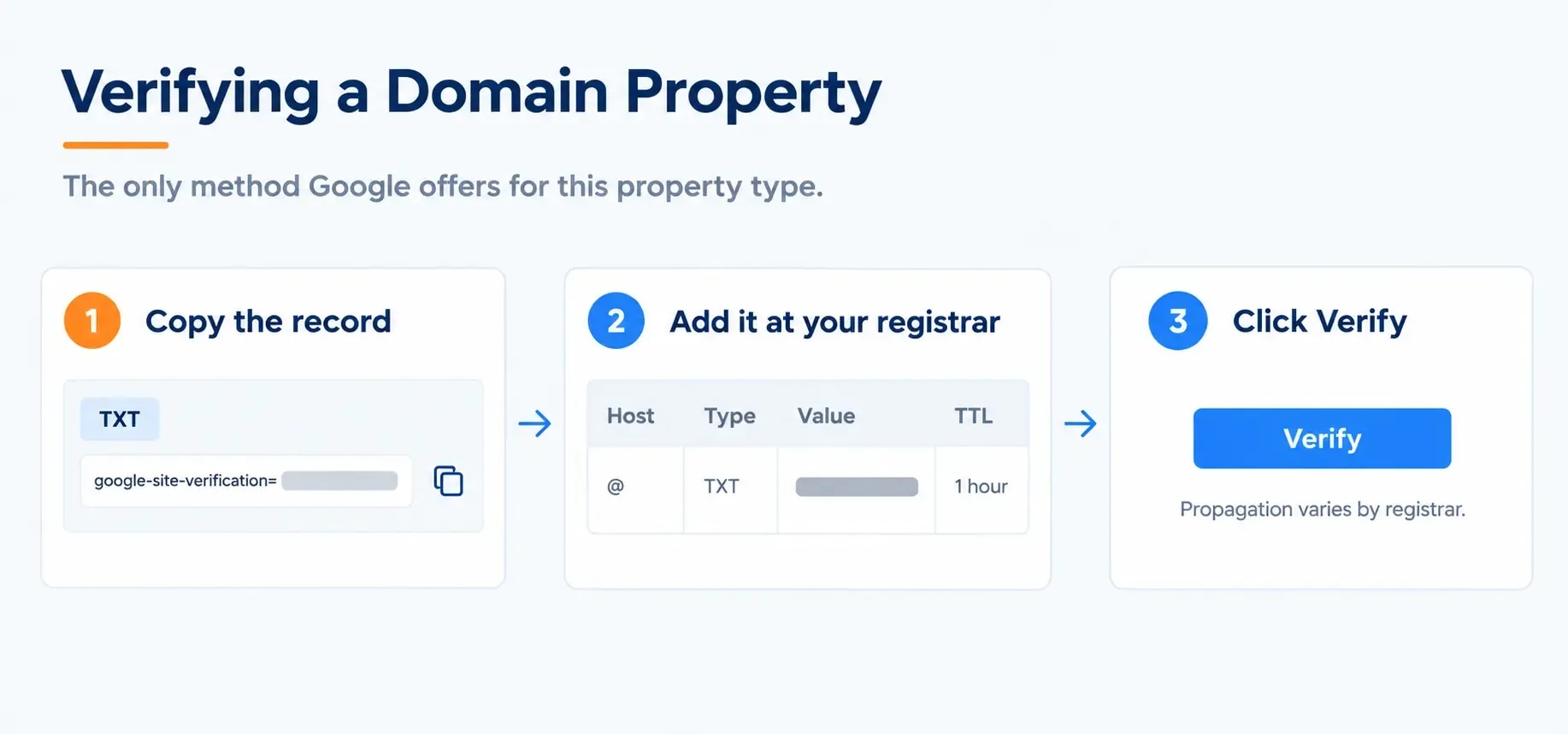
Google describes the DNS method as "the only way to verify a Domain property" [4]. If you created a Domain property and are looking for the meta tag option, it is not there.
For DNS verification, copy the TXT record Search Console generates, add it in your DNS settings at the company that manages your domain, then return and click Verify. If your provider appears in the verification wizard, Google can walk you through it. For a manually added record, Google warns that it "can take up to two or three days" for your provider to start serving it [4]. A failed first attempt usually means the record is not live yet, so wait a day and try again before changing anything.
On WordPress, the HTML tag method is usually the fastest route for a URL-prefix property. Yoast SEO and Rank Math both have a field for the verification code, so you never edit a theme file.
Keep the verification record or tag in place afterwards. Ownership depends on the token staying there.
Step 3: Submit your sitemap, then inspect a few URLs
Open Sitemaps in the left menu, paste your sitemap URL into the Add a new sitemap box, and click Submit. Google points out that submitting only tells it where the file is, since "you cannot actually upload a sitemap to Google" [5]. You need owner permissions to submit one [5].
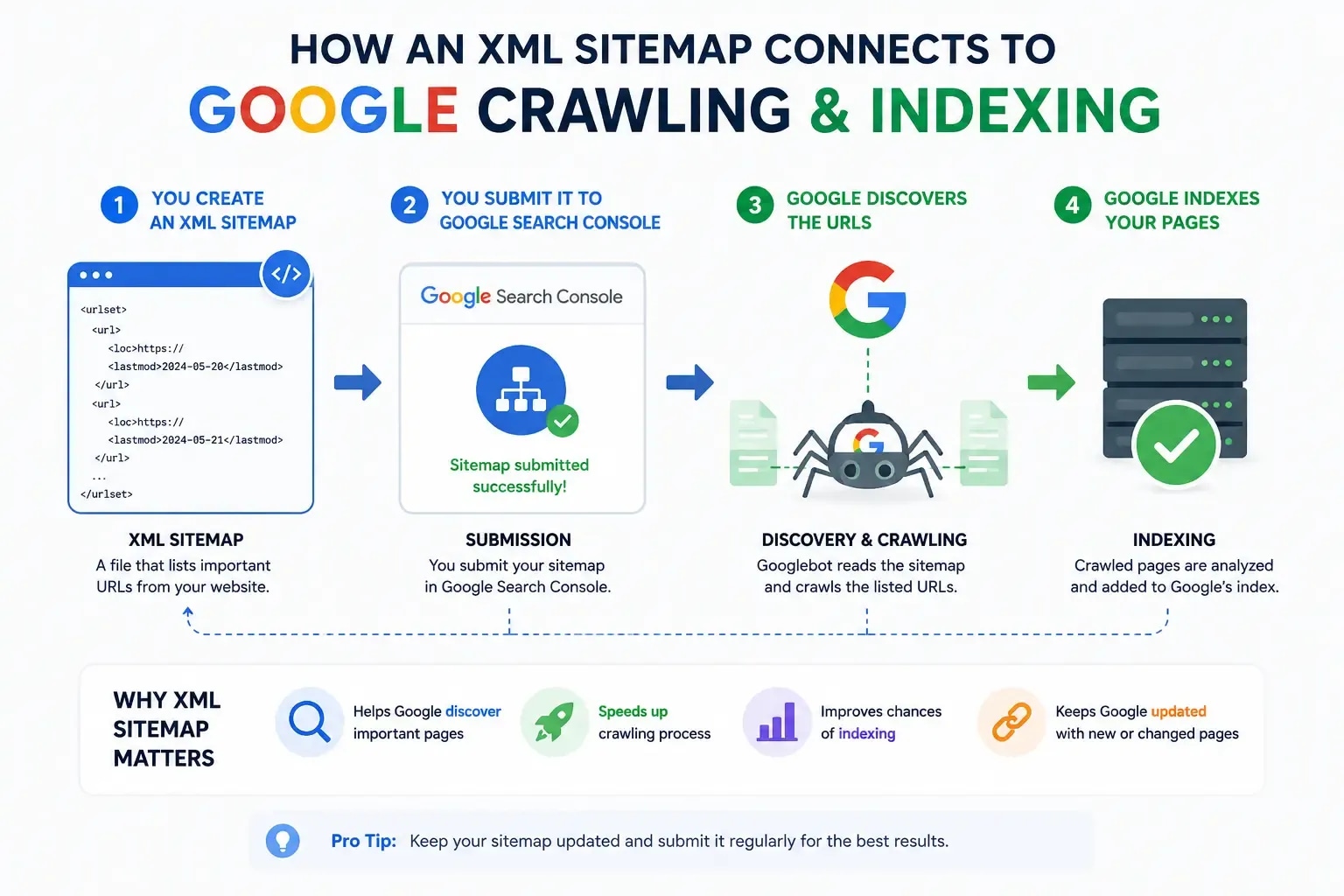
The file is usually at yoursite.com/sitemap.xml, or sitemap_index.xml if an SEO plugin builds it. Google fetches it straight away, but crawling the URLs it lists can take longer, and Google may not crawl every URL in it [5]. Our XML sitemap guide covers what belongs in the file.
Then use URL Inspection on five pages: the home page, your most important commercial page, your newest post, and two pages you suspect have a problem. Inspection shows whether Google has indexed each page and which canonical it chose. It is the fastest way to catch a stray noindex tag, a robots.txt block or a wrong canonical before it costs you months. The robots.txt guide and the technical SEO mistakes guide cover what to look for.
Step 4: Link Search Console to GA4
Linking puts two Search Console reports inside GA4: Google Organic Search Queries and Google Organic Search Traffic [6]. The second one is the useful one, because it joins landing pages with what visitors did after they arrived.
In GA4, go to Admin, then Product links, then Search Console links. Click Link, choose the Search Console property, select your web data stream, and submit [6].
Google's help lists these rules [6]:
- You need the Editor role in GA4 and verified ownership of the Search Console property.
- One web data stream links to one Search Console property, and that property links to only one stream.
- Data reaches GA4 about 48 hours after Search Console collects it, and reports cover at most 16 months.
- The Search Console report collection is unpublished by default. Publish it from Library in GA4.
- You cannot edit a link. To change it, delete it and create a new one.
Two common claims are not in Google's help. It does not say the link only accepts URL-prefix properties; it describes linking a web data stream with "a Search Console website property" [6]. And the link does not start your history from zero. Google says data is available from the time of site verification, or from when you created the data stream if that came later [6].
Anobee linked its URL-prefix property (https://anobee.com/) to its GA4 web stream on 16 July 2026, which is the property this guide's numbers come from. If GA4 is not set up yet, the Google Analytics setup guide covers that first.
Step 5: Set permissions
Skip this if you work alone. Otherwise, give each person the lowest level that lets them do their job [7]:
- Owner: full control, including adding and removing users and changing settings. A property must always keep at least one verified owner, or nobody can access it.
- Full user: sees all data and can take some actions. Right for an agency or contractor doing the work.
- Restricted user: sees most data. Right for anyone who only needs to look.
Manage this under Settings, then Users and permissions. Be careful with owner access, because owners can add and remove other users and change settings for everyone [7].
How to use Google Search Console in your first month
Setup takes 15 minutes. Reading the reports is the real work, and a short weekly check beats an occasional deep dive.
| Report | Check weekly for |
|---|---|
| Performance | Drops or spikes compared with the previous period, and new queries |
| Pages (indexing) | Important pages stuck as "Discovered, currently not indexed" or "Crawled, currently not indexed" |
| Sitemaps | A status other than Success, or a falling count of discovered URLs |
| Core Web Vitals | Pages moving from Good to Needs improvement |
| Security and Manual Actions | Any entry at all. This outranks everything else that day |
In the Performance report, Google defines four numbers [8]. Clicks are clicks from Google to your site. Impressions are how many times your site appeared in results. CTR is clicks divided by impressions. Average position is the average position of your topmost result, so one strong page can lift a site-wide average that most of your pages do not share.
Once you have a few weeks of data, the Performance report starts telling you what to work on: pages just outside the top ten, queries you appear for but never targeted, and pages that are slipping. It also shows the pattern almost every new site sees first.
Search Console impressions but no clicks: what it means
A Performance report full of impressions with almost no clicks does not mean Google is hiding your traffic. In most cases it means your pages appear, but too far down for anyone to choose them.
What Google counts as an impression
Google says an impression is counted "whenever an item appears in the current page of results, whether or not the item is scrolled into view", as long as the searcher did not have to click to see more results [9]. Results inside carousels and expandable sections follow different rules, and usually have to be scrolled or expanded into view [9].
So an impression does not mean a person saw your link. It means your link was on the results page they loaded. A page that averages position 60 only gets impressions from the few searchers who go that far down, and almost none of them click. That is a ranking problem. Rewriting the title will not fix it.
Anobee's own numbers
These are real figures from our URL-prefix property, not an example:
| Data set | Clicks | Impressions | CTR | Average position |
|---|---|---|---|---|
| Whole site, 28 days to early November 2026 | 35 | 14.3K | 0.2% | 57.5 |
| Whole site, United States only, same 28 days | 4 | 8,854 | 0.05% | 63.4 |
| This page, last 16 months (checked 11 November 2026) | 0 | 426 | 0% | 59.1 |
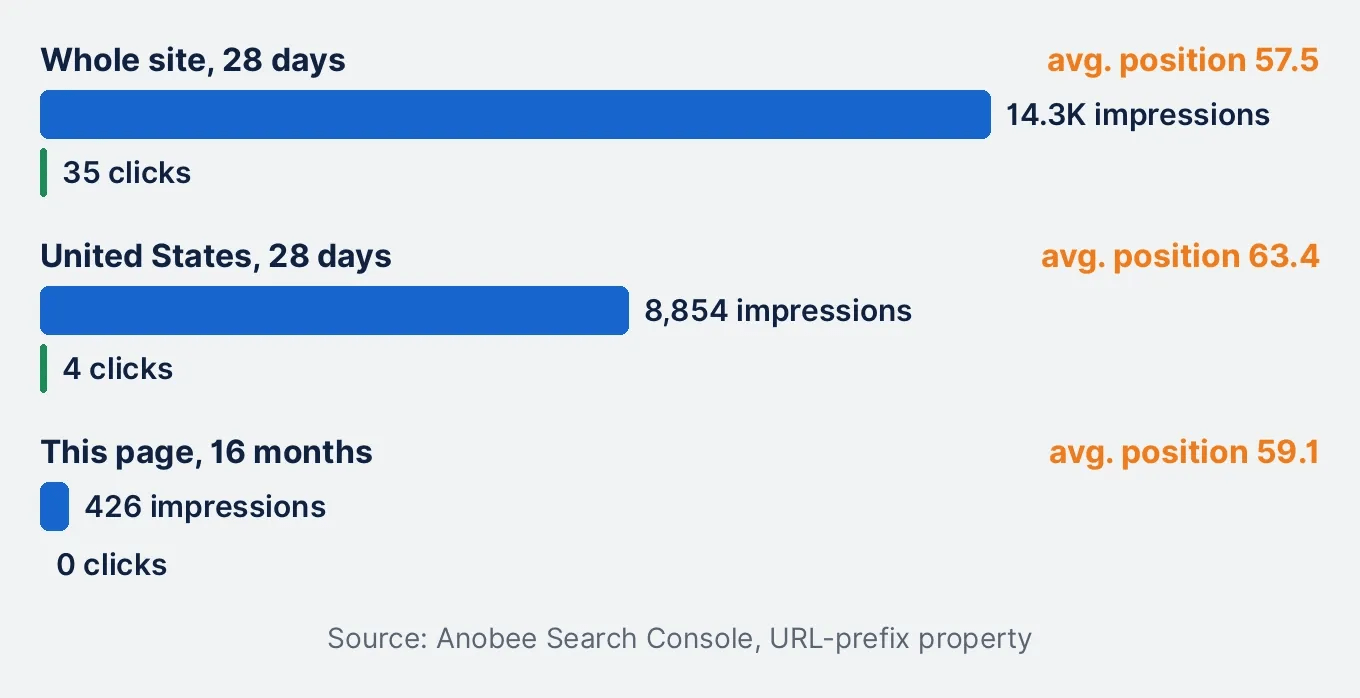
The United States produced most of our impressions and almost none of our clicks, because our average position there was 63. This page's top query, "google search console setup", had 62 impressions at an average position of 73.7. The pages above it are Google's own help pages and large SEO software companies.
The same report showed 13 impressions for "site:anobee.com" at position 17.2. Those are most likely our own checks, which is a reminder that a small site's impressions include its owner.
How to diagnose it, in order
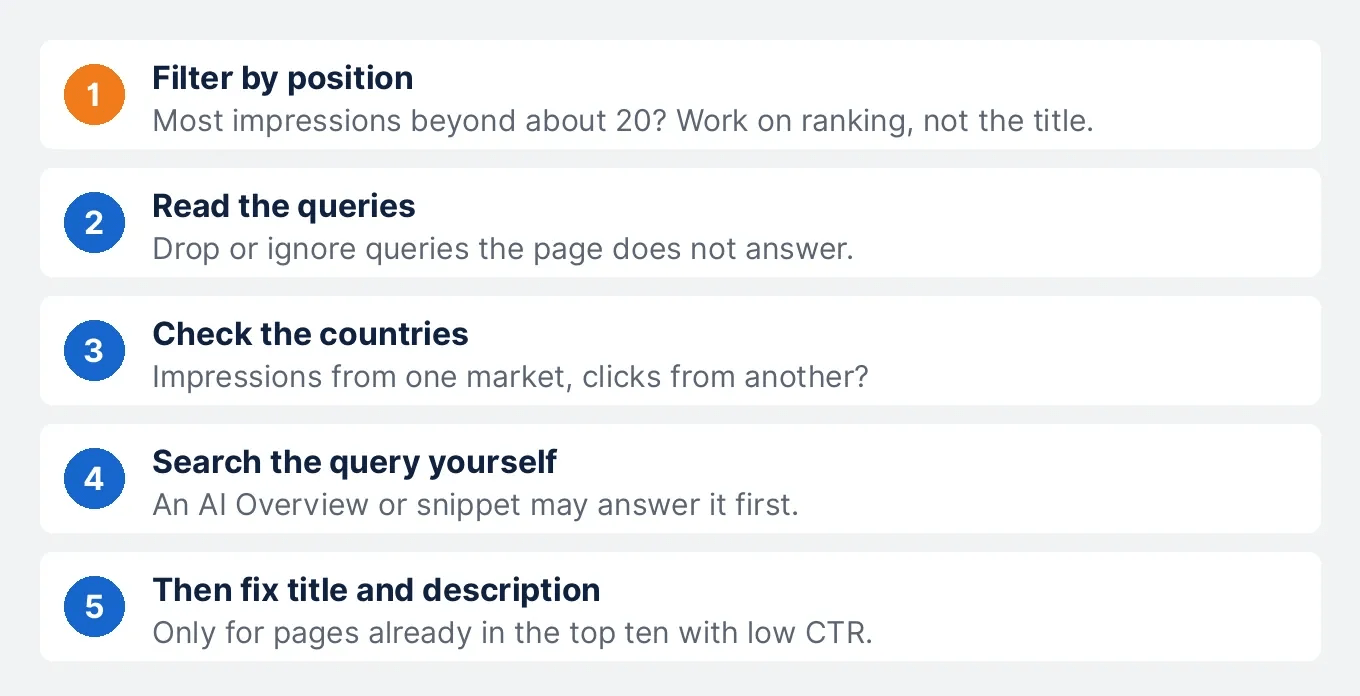
- Filter by position. In the Queries tab, add the Position column and sort. As a rule of thumb, if most impressions come from positions beyond about 20, stop here. The page needs to rank higher, through better coverage of the query, internal links and links from other sites. Title changes will not move a page that nobody scrolls to.
- Read the queries, not the total. Look for queries the page does not answer. This page received 34 impressions for "google search console setup malaysia", a location it never covered. Impressions for the wrong intent will never turn into clicks, and Anobee's search intent guide shows how to judge the match.
- Check the countries. Open the Countries tab. Your clicks may come from one market and your impressions from another where you rank far lower.
- Look for answers above you. Search the query yourself in a private window. If an AI Overview, a featured snippet or a video block answers it first, fewer people scroll to the links. Our zero-click search guide covers what still earns value there. The generative AI performance report, below, shows how often you appear inside those AI features [10].
- Only then, fix the title and description. If a page sits in the top ten with a low CTR, the result may not match what the searcher wanted, or it may look weaker than its neighbours. That is when a clearer title and a direct description are worth testing.
Give each change time. Write down the date you changed the page, then compare the same query, country and date range about four weeks later.
What Google added to Search Console recently
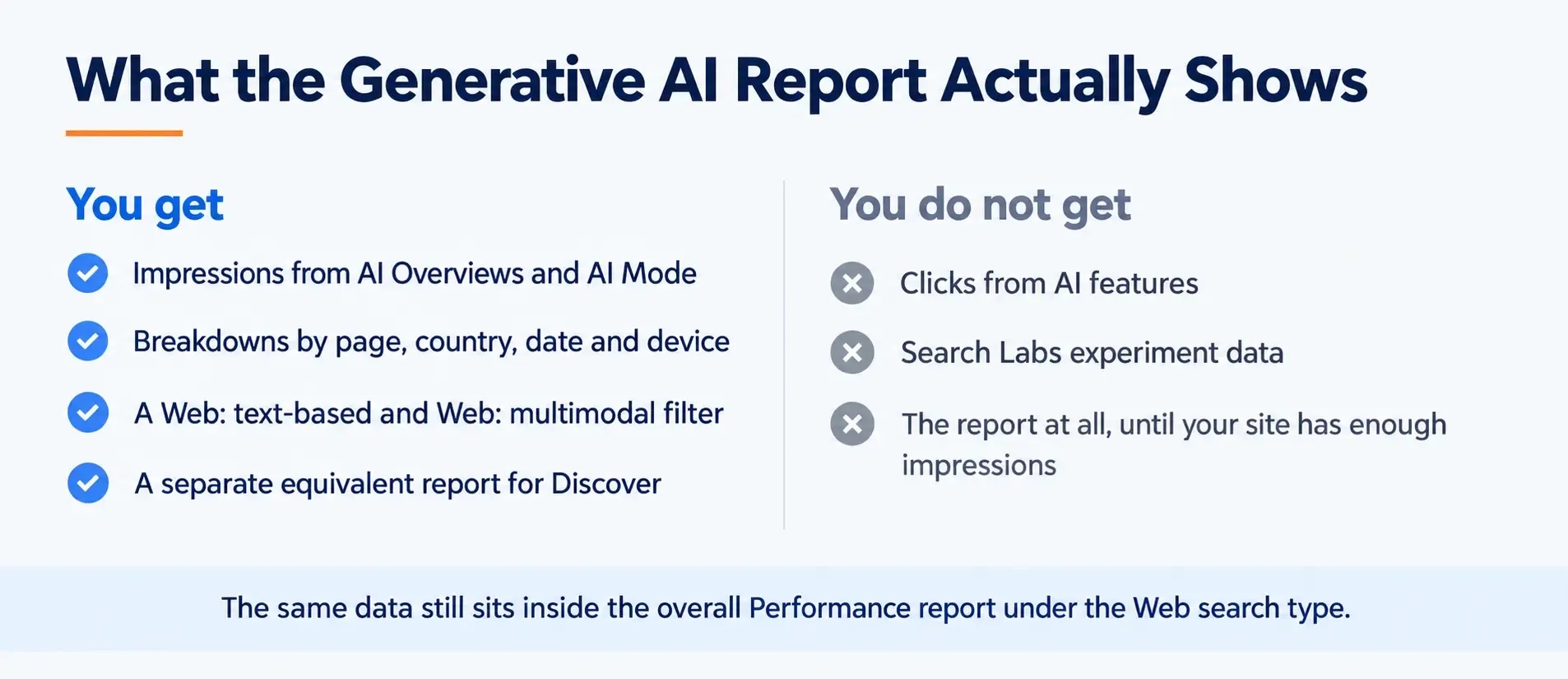
Generative AI performance report. Google announced reports for its generative AI features on 3 June 2026 [11]. The help page says they were rolled out to all websites worldwide on 31 August 2026 [10]. The report covers impressions in AI Overviews and AI Mode, and can be broken down by page, country and device [10]. It reports impressions, not clicks. If you cannot find it, Google says this usually means your site has not had enough impressions in those features yet [10].
Branded queries filter. This separates searches for your brand from searches that found you without knowing you. Google announced it on 20 November 2025 and extended it to all eligible sites on 11 March 2026 [12]. It is "only available for top level properties", not URL-path or subdomain properties, and only for sites with enough queries and impressions [12]. A new site may not see it. Google also notes that some queries may be misidentified and that the filter has no effect on ranking [12].
AI-powered configuration. Describe the view you want in plain language and Search Console sets up the filters. Google announced it on 4 December 2025 as "an experimental feature" for "a limited set of websites", and warns that the AI can misinterpret requests, so review the filters before trusting the numbers [13].
The bottom line
Google Search Console setup comes down to a few decisions. Add both property types today, because history starts when a property is added. Verify the Domain property through DNS, since that is the only route. Submit the sitemap, inspect your key pages, and link GA4 to the property that matches your web stream.
Then read the Performance report with the right expectation. A new site sees impressions long before it sees clicks. When those impressions come from position 60, the work is ranking the page higher, not polishing a title nobody reaches.
Frequently Asked Questions
Is Google Search Console free?
Yes. Google describes Search Console as a free service that helps you monitor and troubleshoot your site's presence in Google Search. There is no paid tier. You do not need it to appear in Google, but without it you cannot see your own query data.
How do I create a Google Search Console account?
There is no separate account to create. Sign in to Search Console with any Google account, which Google says is the only requirement, then add your website as a property and verify that you own it.
How long does Search Console take to show data?
Google says data should begin to appear in a few days. Collection starts as soon as someone adds the property, even before verification, so adding it early gives you more history. Verifying does not import anything from before the property was added.
How do I verify a Domain property in Search Console?
Add the TXT record Search Console gives you to your DNS at your domain name provider, then click Verify. Google says this is the only way to verify a Domain property. A manually added record can take up to two or three days before your provider serves it.
Why does Search Console show impressions but no clicks?
Usually because the page ranks too low for anyone to click. Google counts an impression when your link is on the results page someone loaded, even if they never scrolled to it. Filter the Queries table by position first: if most impressions sit beyond the top 20, fix the ranking before the title.
Can I link a Domain property to GA4?
Google's GA4 help describes the link as connecting a web data stream to a Search Console website property, and lists no rule against Domain properties. What it does require is the Editor role in GA4, verified ownership in Search Console, and a one-to-one link between one stream and one property.
Sources and References
- Search Console Help: About Search Console ↩
- Search Console Help: Getting started with Search Console ↩
- Search Console Help: Add a website property to Search Console ↩
- Search Console Help: Verify your site ownership ↩
- Search Console Help: Manage your sitemaps using the Sitemaps report ↩
- Google Analytics Help: Connect Search Console to Google Analytics ↩
- Search Console Help: Managing owners, users, and permissions ↩
- Search Console Help: Performance report (Search results) ↩
- Search Console Help: What are impressions, position, and clicks? ↩
- Search Console Help: Generative AI performance report (Search) ↩
- Google Search Central Blog: Search generative AI performance reports ↩
- Google Search Central Blog: Introducing the branded queries filter ↩
- Google Search Central Blog: AI-powered configuration in Search Console ↩
Was this guide helpful?
Your answer helps Anobee improve future updates.

Written by
Bibek Thapa
AI-Powered Digital Growth Strategist
Bibek Thapa works across AI workflows, SEO, AI search optimization, content strategy, website growth, and productivity systems at Anobee.
- AI workflows
- Digital growth
- SEO
- GEO
- AEO
- Content strategy
- Website growth